


09/08/2026
5 min read
How to connect AI assistants to Bitpanda Fusion in five minutes
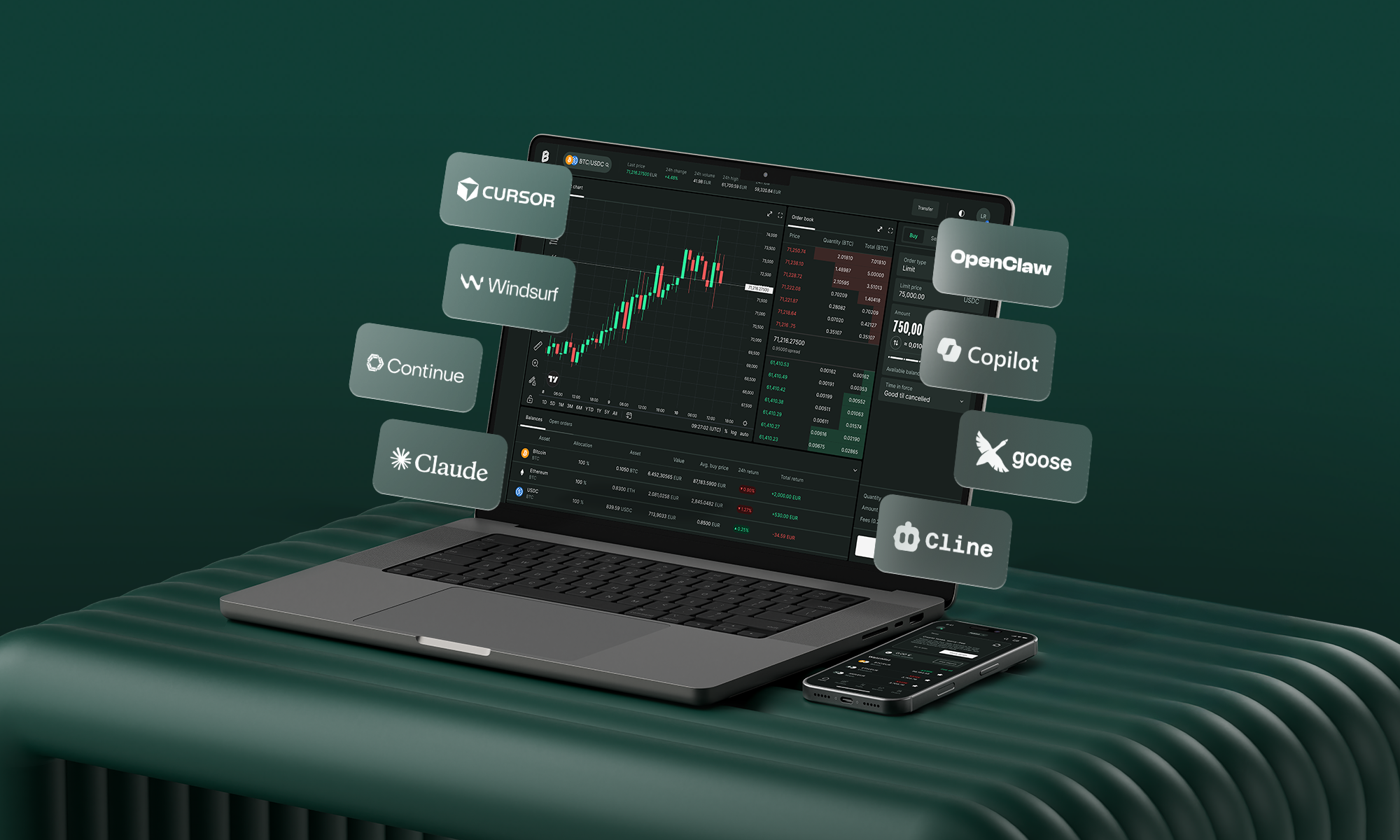
An AI assistant connected to Bitpanda Fusion can read my order book, quote a spread, pull my fee tier and place an order, all from a conversational question. No CSV export and no second screen.
The strategy stays the same and the decisions stay where they belong, with me. What changes is the complexity between a question and its answer: positions, spreads, profit and loss, fee tier and open orders become things I can query directly rather than assemble by hand.
If you generated a Fusion API key at some point and stopped there, this is the part that was missing. Setup takes about five minutes and one line of configuration. Below you will find how to connect it, what your AI can reach once it is live and where the limits sit.
Before you connect: four prerequisites
Before creating your API key, make sure these four prerequisites are in place:
Activate Bitpanda Fusion. Log in to your Bitpanda account and open app.bitpanda.com/fusion to complete the one-time activation if you have not done so already.
Enable two-factor authentication (2FA). Check that 2FA is active in your Bitpanda account's security settings. You need it to approve API key generation.
Prepare secure storage. Open your password manager or another secure storage location. Your API key is displayed only once. If you miss saving it, you will need to create a new one.
Open your AI assistant. Have your MCP-compatible client (such as Claude Desktop, Claude Code, Cursor or Codex) ready to receive the configuration snippet.
First things first: what is MCP and how does it connect AI assistants to my portfolio without code?
MCP (Model Context Protocol) is an open standard that gives AI assistants a structured way to talk to outside services. In practice, that means:
Nothing to install locally. Fusion's MCP server is hosted remotely. You point your AI client at a web address rather than installing software.
Live data instead of guesswork. Without MCP, an assistant asked about my positions can only speculate or ask me to paste a screenshot. With MCP it calls a defined tool and gets live data back.
Your key stays between you and Bitpanda. It authenticates your requests with Fusion. It stays out of the conversation sent to the model provider.
APIs were built for code. MCP was built for conversation, which is why the setup below is a single line rather than a project.
Step 1: how to generate your Bitpanda Fusion API key

1. Navigate to API settings
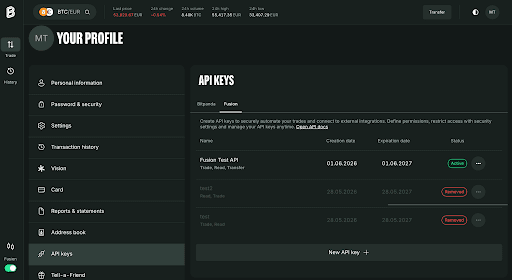
Log in to your account at app.bitpanda.com. Go to Your Profile, then API keys and switch to the Fusion tab.
2. Create a new key
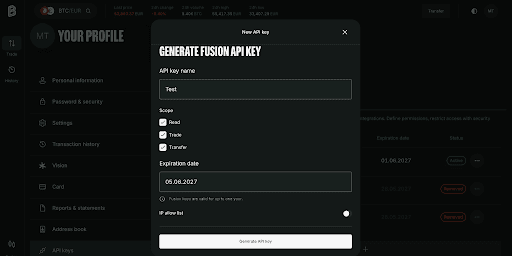
Click New API key +. Name it clearly, for example bitpanda-fusion-claude or AI-Trading-ReadOnly. Clear naming lets you revoke specific keys later without disrupting other integrations.
3. Select your permission scopes
Choose the exact permissions for your key:
Read: grants portfolio tracking, balance queries, order book viewing and fee-tier checks.
Trade: allows placing, modifying and cancelling orders.
Transfer (optional): allows asset transfers between your main Bitpanda account and Fusion.
Recommended approach: generate a read-only key first. Connect it and test what you can actually ask. Then create a second key with trade permissions once you know how you want to use it. Your first key can be one of many.
4. Confirm and save
Confirm with two-factor authentication, copy the key immediately and store it in your password manager. It is shown once and is not recoverable. If you lose it, simply generate a new one.
Step 2: how to connect Claude to Bitpanda Fusion
We use Claude because its support for both desktop and command-line MCP connections makes it a clear example for this walkthrough. Fusion also works with Cursor, Codex, OpenClaw and local MCP-compatible assistants; the connection process and API key are the same. Click here for the full documentation.
There are two ways to connect Claude. Choose the one that best matches how you work.
Option A: Connect Fusion MCP to Claude Desktop (no terminal needed)

Open your claude_desktop_config.json file, located at:
macOS: ~/Library/Application Support/Claude/claude_desktop_config.json
Windows: %APPDATA%\Claude\claude_desktop_config.json
Paste the following JSON configuration snippet (this requires Node.js and npx installed on your machine):
{
"mcpServers": {
"fusion": {
"command": "npx",
"args": [
"-y",
"mcp-remote",
"https://mcp.fusion.bitpanda.com",
"--header",
"x-api-key: <YOUR_API_KEY>"
]
}
}
}
Replace the placeholder with your generated API key. Keep the quotation marks and delete only the text inside them. Save, then quit and reopen the app completely rather than minimising it. Tools often appear only after a full restart.
On Windows, point command directly at the mcp-remote binary (replace YOUR_USERNAME and ):
{
"mcpServers": {
"fusion": {
"command": "C:\\Users\\YOUR_USERNAME\\AppData\\Roaming\\npm\\mcp-remote.cmd",
"args": [
"https://mcp.fusion.bitpanda.com",
"--header",
"x-api-key:<YOUR_API_KEY>"
]
}
}
}
Windows note: if Claude refuses to start and shows an error like "The command C:\Program is either misspelled or could not be found," run npm install -g mcp-remote, then set command in your config to C:\\Users\\YOUR_USERNAME\\AppData\\Roaming\\npm\\mcp-remote.cmd (with just the URL and --header lines in args).
Option B: connect Fusion MCP to Claude Code from the command line

If you already work in a terminal and have Claude Code installed, it is a single line:
claude mcp add --transport http fusion "https://mcp.fusion.bitpanda.com" --scope user --header "x-api-key: <YOUR_API_KEY>"
Replace with the key from Step 1, keeping it inside the quotes. Press Enter. Your terminal confirms that the Fusion MCP server has been added.
Naming tip: keep server names distinct, for example bitpanda-fusion for Fusion trading and bitpanda for standard retail portfolio endpoints. Registering both under the exact same name overwrites the existing entry.
Step 3: test your Fusion MCP connection before your first trade

Start with something that can't cost you anything. Ask your assistant:
List the available trading pairs on Bitpanda Fusion.
If real pairs come back (BTC-EUR, ETH-EUR and a couple of thousand others) you're alive. If you get an apology, an invented answer, or "I don't have access to that," go to troubleshooting.

Step 4: set a daily trading limit on your API key (optional, 60 seconds)
Before you hand any key with trade permissions to an AI, you can put a hard ceiling on what it is able to spend per day. The limits are exposed as tools your assistant can call, so you set them by asking:
"Get the current trading limits for my Bitpanda API key."
"Set my daily trading limits to 100 EUR for buys and 100 EUR for sells."
Prefer to write code? MCP vs API vs CLI
MCP is the no-code route. It simplifies conversational interaction, and Bitpanda Fusion also offers alternative access modes for technical traders:
Access method | Target use case | Setup complexity | Execution style |
|---|---|---|---|
Fusion MCP | Conversational querying, interactive analysis, agentic trade prompts | Minimal (single config block) | Natural language prompts |
Fusion API | Custom algorithmic bots, high-frequency execution pipelines | Moderate (full codebase setup) | Programmatic HTTP/WebSocket |
Fusion CLI (bp-fusion) | Terminal-native execution, rapid shell scripts | Minimal (binary installation) | CLI command syntax |
The smartest traders aren't clicking buttons anymore.
Get started with Fusion MCPWhat Fusion gives your AI to work with
Connecting AI to Fusion gives your assistant access to the same trading infrastructure I already use:
Aggregated liquidity across more than 12 venues: analyse depth and spreads using a consolidated order book rather than data from a single venue.
More than 2,000 trading pairs: compare a broad range of crypto markets, including pairs quoted directly in EUR, CHF and GBP.
One execution engine: Fusion MCP, API and CLI use the same underlying account and execution infrastructure, keeping AI and automated workflows aligned.
European regulatory oversight: trade through Bitpanda's regulated European infrastructure.
Live fee-tier visibility: ask for my current fee tier, rolling 30-day trading volume and progress towards the next tier.
Fusion AI prompt library
Once your AI assistant is connected, try these prompts for portfolio analysis, market exploration and taking action.
Portfolio analysis
"What is my current available cash balance? Break down my crypto portfolio performance over the last seven days."
Market analysis
"What are the top five performing crypto assets on Fusion in the last 24 hours? Compare Bitcoin, Ethereum and Solana over the last 30 days."
Portfolio analysis and trade execution
Start by asking your AI assistant to analyse your portfolio:
Analysis: "Based on my current portfolio, which crypto asset am I underweight in?"
You can then follow up with an instruction to place a trade:
Execution: "Buy €20 of Bitcoin and €20 of Ethereum."
This is the shift being called agentic trading: an assistant that does more than answer questions about markets. It takes real steps in a real account, within permissions you set. The interesting part of AI right now is less what it can tell you and more what it can do once you have given it a defined, accountable way to act. Ready to explore this further? Learn more about automating your trading flow with Bitpanda Academy.
Where the limits sit: what stays outside your AI assistant's reach
Worth being straight about the edges:
Advice stays off the table. The assistant is a third-party tool, not a Bitpanda advisor. Its output is not investment advice or a Bitpanda recommendation, and it has no view on whether a trade is a good idea.
Money stays in your account. Deposits and withdrawals are not exposed through this connection.
It acts only when asked. No schedule, no background process and no "run this every morning" unless you build it yourself with the API. It responds when you ask.
It stays within your key. A read-only key means a read-only assistant, however the request is phrased.
Connect your AI to Bitpanda Fusion
Generate your API key at app.bitpanda.com, paste one line into your AI client and ask your first question.
FAQ: connecting AI to Bitpanda Fusion
Do I need a separate account to connect AI to Bitpanda Fusion?
No. Fusion runs inside your existing Bitpanda account with integrated onboarding, and you generate the API key from your profile settings. One key can serve the MCP servers, the REST APIs and the CLI.
Is Fusion MCP free?
There is no separate charge for connecting via MCP or API.
Which AI assistants support Bitpanda Fusion?
Bitpanda Fusion works with any MCP-compatible client. Currently, this includes Claude Desktop, Claude Code, Cursor and Codex, and the list is growing as MCP adoption expands. ChatGPT works with a standard Bitpanda account, and compatibility with Bitpanda Fusion is not available just yet.
Can the AI place trades without my approval?
No. It asks for explicit approval before executing any trade, order or transfer, and no agent places an investment on its own. Beyond that, your key's scopes set the hard ceiling: a read-only key has no ability to trade under any circumstances, and a daily trading limit caps what a trade-enabled key can do per day regardless of how the assistant behaves.
Is my API key sent to the AI model?
No. It authenticates your requests with Bitpanda and stays out of the conversation sent to the model provider.
What happens if the AI misunderstands me?
This is what scoped permissions and daily limits are for. Start read-only, ask the assistant to confirm order details before executing and set a daily cap on any trade-enabled key. Because you review and authorise every instruction, an unclear prompt should stop at the confirmation step rather than at your balance.
Is Fusion MCP an AI trading bot?
No. It is a connection layer with no strategy, no schedule and no unprompted action. If you want something running continuously, that is what the Fusion API is for, and you build the logic.
Can I connect both Fusion and my standard Bitpanda portfolio?
Yes. Register both MCP servers in the same compatible AI app under different names. Fusion MCP gives your assistant access to advanced crypto trading tools, while the standard Bitpanda MCP covers your broader portfolio across crypto, stocks, ETFs and precious metals. Trading and Earn tools require the matching scopes on your key. To learn more, read the Bitpanda Academy guide How to connect your Bitpanda portfolio.
Do I need to know how to code to use Fusion MCP?
No. Option A above is a copy-paste config block with no terminal involved. If you can paste text into a settings field, you can complete the setup.
Why connect AI to Bitpanda Fusion rather than another exchange's MCP server?
Single-exchange MCP servers lock your AI to a single order book. Bitpanda Fusion MCP aggregates order books across more than 12 liquidity venues for optimal execution, operates under Europe's strict MiCAR framework, charges zero deposit and withdrawal fees and offers significantly lower trading fees that scale even further down with volume.FAQ: connecting AI to Bitpanda Fusion
Do I need a separate account to connect AI to Bitpanda Fusion?
No. Fusion runs inside your existing Bitpanda account with integrated onboarding, and you generate the API key from your profile settings. One key can serve the MCP servers, the REST APIs and the CLI.
Is Fusion MCP free?
There is no separate charge for connecting via MCP or API.
Which AI assistants support Bitpanda Fusion?
Bitpanda Fusion works with any MCP-compatible client. Currently, this includes Claude Desktop, Claude Code, Cursor and Codex, and the list is growing as MCP adoption expands. ChatGPT works with a standard Bitpanda account, and compatibility with Bitpanda Fusion is not available just yet.
Can the AI place trades without my approval?
No. It asks for explicit approval before executing any trade, order or transfer, and no agent places an investment on its own. Beyond that, your key's scopes set the hard ceiling: a read-only key has no ability to trade under any circumstances, and a daily trading limit caps what a trade-enabled key can do per day regardless of how the assistant behaves.
Is my API key sent to the AI model?
No. It authenticates your requests with Bitpanda and stays out of the conversation sent to the model provider.
What happens if the AI misunderstands me?
This is what scoped permissions and daily limits are for. Start read-only, ask the assistant to confirm order details before executing and set a daily cap on any trade-enabled key. Because you review and authorise every instruction, an unclear prompt should stop at the confirmation step rather than at your balance.
Is Fusion MCP an AI trading bot?
No. It is a connection layer with no strategy, no schedule and no unprompted action. If you want something running continuously, that is what the Fusion API is for, and you build the logic.
Can I connect both Fusion and my standard Bitpanda portfolio?
Yes. Register both MCP servers in the same compatible AI app under different names. Fusion MCP gives your assistant access to advanced crypto trading tools, while the standard Bitpanda MCP covers your broader portfolio across crypto, stocks, ETFs and precious metals. Trading and Earn tools require the matching scopes on your key. To learn more, read the Bitpanda Academy guide How to connect your Bitpanda portfolio.
Do I need to know how to code to use Fusion MCP?
No. Option A above is a copy-paste config block with no terminal involved. If you can paste text into a settings field, you can complete the setup.
Why connect AI to Bitpanda Fusion rather than another exchange's MCP server?
Single-exchange MCP servers lock your AI to a single order book. Bitpanda Fusion MCP aggregates order books across more than 12 liquidity venues for optimal execution, operates under Europe's strict MiCAR framework, charges zero deposit and withdrawal fees and offers significantly lower trading fees that scale even further down with volume.
Ready to get started?
Open your Fusion account